Table of contents
Rsync Filters
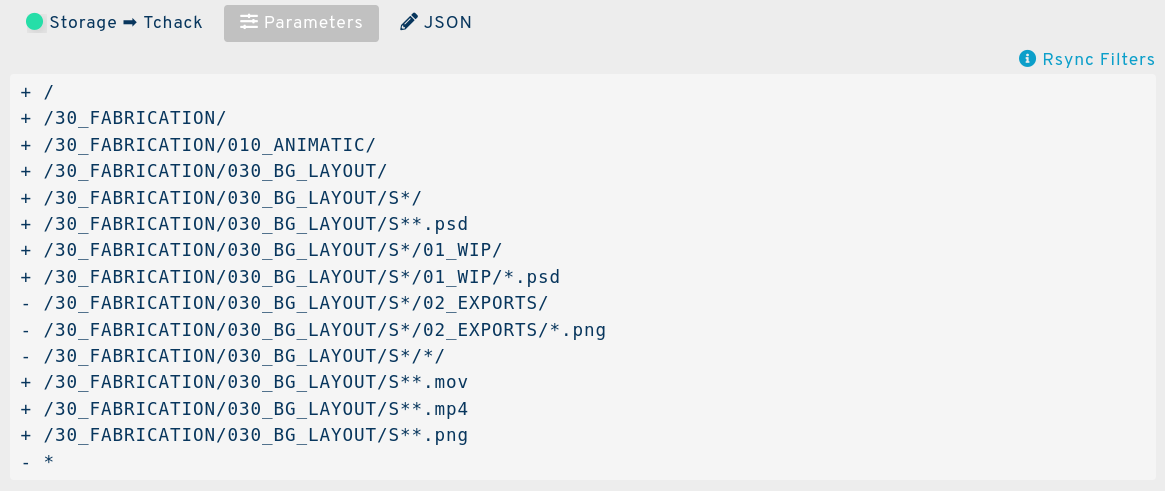
Prior to each file transfer during synchronisation, Rsync creates a list of the files to process. These lists can be managed using filters to include and exclude files using a powerful syntax.
Overview
The Rsync filters defined in a hub scope are applied to every transfer for that hub. Filters defined in a channel scope are only applied to transfers for that specific channel. The hub's filters are always applied first, as processing order is important to rsync.
Note
SyncPlanet systematically applies an exclude filter rule (- *) for every file that didn't match any rule so that every file is excluded by default.
The filters are applied in the following order:
- Hub Filters
- Link Filters
- *
Filter Syntax
Rsync follows a specific syntax. According to its rules, to set a filter rule, you must start a line with a specific symbol:
-: start a line with this to exclude a file or pattern. This can be used to exclude a specific file, or an entire folder.- To exclude a file by name, including duplicates and regardless of its location in the folder tree, use
-next to the file's name. E.g.:- excluded_filename - To exclude several files, use
-next to the folder path to the folder you wish to filter out. E.g.:- /path/to/*/a/file
- To exclude a file by name, including duplicates and regardless of its location in the folder tree, use
+: start a line with this to include a file or pattern.- To include a specific folder, use
+next to the folder name. E.g.:+ /tools/ - To include everything recursively in a folder, use
+next to the folder path.E.g.: + /tools/**
- To include a specific folder, use
#: start a line with this to add a comment to it.
Rules are applied in order (up to bottom).
Typically excluded files
Here you will find a list of commonly used rules that can be defined in the hub filters so that these files will always be skipped.
Exclude hidden files
The hidden files usually wear a . (dot) character in front of their names. We can exclude them all using the following rule:
- .*
Exclude system files
The local file system is sometimes used to store some system meta data (like thumbnails and various information), Here are some rules to exclude some of them:
- @eaDir/
- _SYNCAPP
- Thumbs.db
Exclude temporary files
When editing files, many softwares write a new file, in the same directory as the original file, adding a ~ (tilde) character to the end of the file name. This file is often used to store temporary changes (until the file is saved again) and to know that someone is editing the file (to provide an edition lock). In most scenarios we can safely filter these files from the synchronization. Here is the rule to exclude them all:
- *~
We can filter these exclusions more precisely using rules with specific file extensions. Here are some commonly encountered temporary files used in 2D/3D digital content creation:
# Autodesk Maya
- *.ma~

# Nuke
- *.nk~

# Storyboard Pro
- *.sboard~

# Toon Boom Vector Graphics
- *.tvg~
Exclude executable files
Malware propagate through executable files for vulnerable systems. As such, it is always a good idea to exclude them for extra security by default:
- *.dll
- *.exe
If the project needs to transfer executable files, more precise include rules can be defined.
[!Note] For more information, please check the Rsync manual (included below).
Rsync Manual
Below is the official manual from rsync version 3.2.3.
From rsync 3.2.3 manual:
FILTER RULES
The filter rules allow for flexible selection of which files to transfer (include) and which files to skip (exclude). The rules either directly specify include/exclude patterns or they specify a way to acquire more include/exclude patterns (e.g. to read them from a file).
As the list of files/directories to transfer is built, rsync checks each name to be transferred against the list of include/exclude patterns in turn, and the first matching pattern is acted on: if it is an exclude pattern, then that file is skipped; if it is an include pattern then that filename is not skipped; if no matching pattern is found, then the filename is not skipped.
Rsync builds an ordered list of filter rules as specified on the command-line. Filter rules have the following syntax:
RULE [PATTERN_OR_FILENAME]
RULE,MODIFIERS [PATTERN_OR_FILENAME]
You have your choice of using either short or long RULE names, as described below. If you use a short-named rule, the ’,’ separating the RULE from the MODIFIERS is optional. The PATTERN or FILENAME that follows (when present) must come after either a single space or an underscore (_). Here are the available rule prefixes:
exclude, - specifies an exclude pattern.
include, + specifies an include pattern.
merge, . specifies a merge-file to read for more rules.
dir-merge, : specifies a per-directory merge-file.
hide, H specifies a pattern for hiding files from the transfer.
show, S files that match the pattern are not hidden.
protect, P specifies a pattern for protecting files from deletion.
risk, R files that match the pattern are not protected.
clear, ! clears the current include/exclude list (takes no arg)When rules are being read from a file, empty lines are ignored, as are comment lines that start with a "#".
Note that the --include/--exclude command-line options do not allow the full range of rule parsing as described above -- they only allow the specification of include/exclude patterns plus a "!" token to clear the list (and the normal comment parsing when rules are read from a file). If a pattern does not begin with "- " (dash, space) or "+ " (plus, space), then the rule will be interpreted as if "+ " (for an include option) or "- " (for an exclude option) were prefixed to the string. A --filter option, on the other hand, must always contain either a short or long rule name at the start of the rule.
Note also that the --filter, --include, and --exclude options take one rule/pattern each. To add multiple ones, you can repeat the options on the command-line, use the merge-file syntax of the --filter option, or the --include-from/--exclude-from options.
INCLUDE/EXCLUDE PATTERN RULES
You can include and exclude files by specifying patterns using the "+", "-", etc. filter rules (as introduced in the FILTER RULES section above). The include/exclude rules each specify a pattern that is matched against the names of the files that are going to be transferred. These patterns can take several forms:
- if the pattern starts with a / then it is anchored to a particular spot in the hierarchy of files, otherwise it is matched against the end of the pathname. This is similar to a leading ^ in regular expressions. Thus "/foo" would match a name of "foo" at either the "root of the transfer" (for a global rule) or in the merge-file’s directory (for a per-directory rule). An unqualified "foo" would match a name of "foo" anywhere in the tree because the algorithm is applied recursively from the top down; it behaves as if each path component gets a turn at being the end of the filename. Even the unanchored "sub/foo" would match at any point in the hierarchy where a "foo" was found within a directory named "sub". See the section on ANCHORING INCLUDE/EXCLUDE PATTERNS for a full discussion of how to specify a pattern that matches at the root of the transfer.
- if the pattern ends with a / then it will only match a directory, not a regular file, symlink, or device.
- rsync chooses between doing a simple string match and wildcard matching by checking if the pattern contains one of these three wildcard characters: ’*’, ’?’, and ’[’ .
- a ’*’ matches any path component, but it stops at slashes.
- use ’**’ to match anything, including slashes.
- a ’?’ matches any character except a slash (/).
- a ’[’ introduces a character class, such as [a-z] or
[[:alpha:]].- in a wildcard pattern, a backslash can be used to escape a wildcard character, but it is matched literally when no wildcards are present. This means that there is an extra level of backslash removal when a pattern contains wildcard characters compared to a pattern that has none. e.g. if you add a wildcard to "foo\bar" (which matches the backslash) you would need to use "foo\bar*" to avoid the "\b" becoming just "b".
- if the pattern contains a / (not counting a trailing /) or a "", then it is matched against the full pathname, including any leading directories. If the pattern doesn’t contain a / or a "", then it is matched only against the final component of the filename. (Remember that the algorithm is applied recursively so "full filename" can actually be any portion of a path from the starting directory on down.)
- a trailing "dir_name/*" will match both the directory (as if "dir_name/" had been specified) and everything in the directory (as if "dir_name/" had been specified). This behavior was added in version 2.6.7.
Note that, when using the --recursive (-r) option (which is implied by -a), every subcomponent of every path is visited from the top down, so include/exclude patterns get applied recursively to each subcomponent’s full name (e.g. to include "/foo/bar/baz" the subcomponents "/foo" and "/foo/bar" must not be excluded). The exclude patterns actually short-circuit the directory traversal stage when rsync finds the files to send. If a pattern excludes a particular parent directory, it can render a deeper include pattern ineffectual because rsync did not descend through that excluded section of the hierarchy. This is particularly important when using a trailing ’*’ rule. For instance, this won’t work:
          + /some/path/this-file-will-not-be-found
          + /file-is-included
          - *
This fails because the parent directory "some" is excluded by the ’*’ rule, so rsync never visits any of the files in the "some" or "some/path" directories. One solution is to ask for all directories in the hierarchy to be included by using a single rule: "+ */" (put it somewhere before the "- *" rule), and perhaps use the --prune-empty-dirs option. Another solution is to add specific include rules for all the parent dirs that need to be visited. For instance, this set of rules works fine:
          + /some/
          + /some/path/
          + /some/path/this-file-is-found
          + /file-also-included
          - *
Here are some examples of exclude/include matching:
- "- *.o" would exclude all names matching *.o
- "- /foo" would exclude a file (or directory) named foo in the transfer-root directory
- "- foo/" would exclude any directory named foo
- "- /foo/*/bar" would exclude any file named bar which is at two levels below a directory named foo in the transfer-root directory
- "- /foo/**/bar" would exclude any file named bar two or more levels below a directory named foo in the transfer-root directory
- The combination of "+ */", "+ *.c", and "- *" would include all directories and C source files but nothing else (see also the --prune-empty-dirs option)
- The combination of "+ foo/", "+ foo/bar.c", and "- " would include only the foo directory and foo/bar.c (the foo directory must be explicitly included or it would be excluded by the "")
The following modifiers are accepted after a "+" or "-":
- A / specifies that the include/exclude rule should be matched against the absolute pathname of the current item. For example, "-/ /etc/passwd" would exclude the passwd file any time the transfer was sending files from the "/etc" directory, and "-/ subdir/foo" would always exclude "foo" when it is in a dir named "subdir", even if "foo" is at the root of the current transfer.
- A ! specifies that the include/exclude should take effect if the pattern fails to match. For instance, "-! */" would exclude all non-directories.
- A C is used to indicate that all the global CVS-exclude rules should be inserted as excludes in place of the "-C". No arg should follow.
- An s is used to indicate that the rule applies to the sending side. When a rule affects the sending side, it prevents files from being transferred. The default is for a rule to affect both sides unless --delete-excluded was specified, in which case default rules become sender-side only. See also the hide (H) and show (S) rules, which are an alternate way to specify sending-side includes/excludes.
- An r is used to indicate that the rule applies to the receiving side. When a rule affects the receiving side, it prevents files from being deleted. See the s modifier for more info. See also the protect (P) and risk (R) rules, which are an alternate way to specify receiver-side includes/excludes.
- A p indicates that a rule is perishable, meaning that it is ignored in directories that are being deleted. For instance, the -C option’s default rules that exclude things like "CVS" and "*.o" are marked as perishable, and will not prevent a directory that was removed on the source from being deleted on the destination.
- An x indicates that a rule affects xattr names in xattr copy/delete operations (and is thus ignored when matching file/dir names). If no xattr-matching rules are specified, a default xattr filtering rule is used (see the --xattrs option).
Next
- Check the documentation on rsync options