Table of contents
Synchronisation Hub
The central server is a hub which organises the file transfers between the connected storages. It is usually installed on a high availability physical machine in a datacenter to provide an optimal and continuous service.
The Hub page is divided into five tabs:
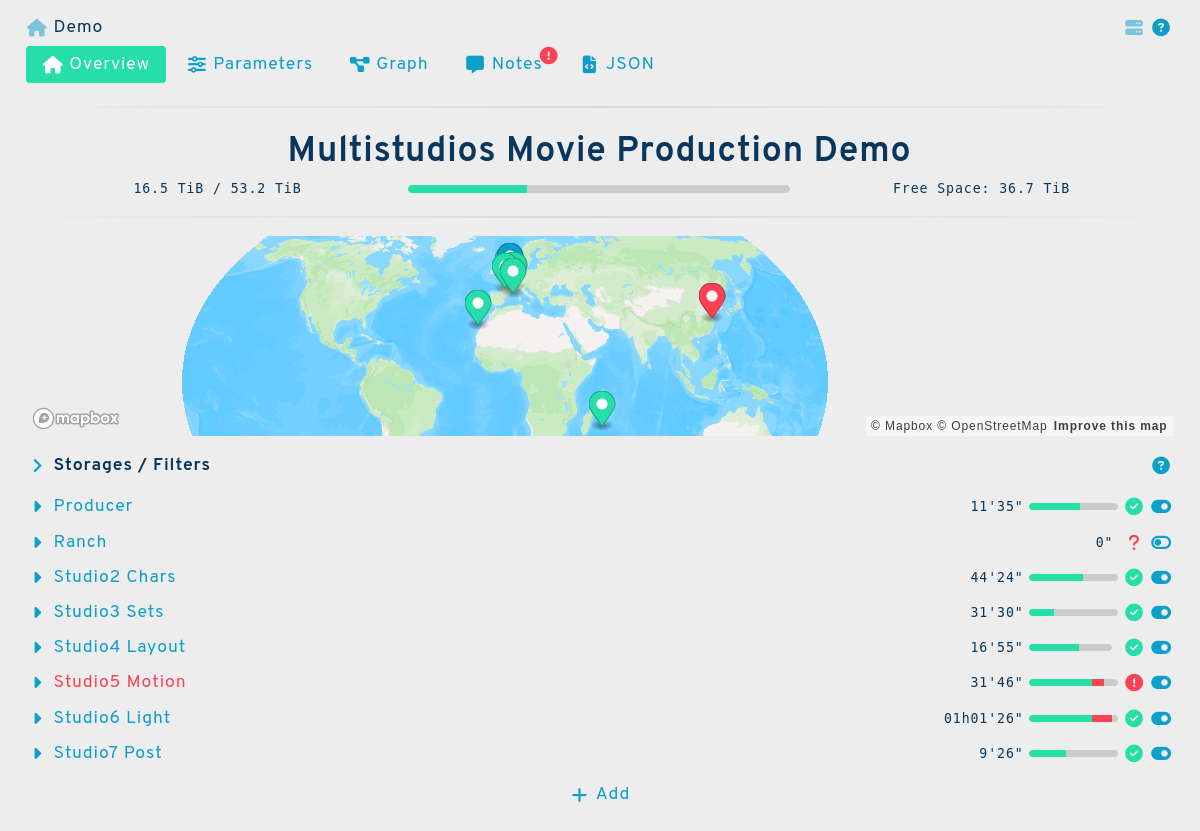
Hub Overview
The main tab of the hub's graphical user interface is divided into 3 sections:
- The Hub's Storage Details at the top
- Geographic Map in the middle
- Storages / Channels Explorer at the bottom
Storage Details
 There you can find useful information such as the hub's long name, its space gauge, currently used space, total space, and free space.
Note
Developpers can access these values by reading the keys: longName, bytesRemaining, bytesTotal,
bytesUsed
Geographic Map
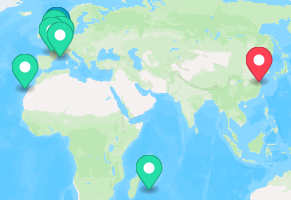
The hub's location is shown as a blue marker on the map . Its connected storages are shown as green markers . Red markers indicate an error.
Note
The markers are positioned using an automated IP-address-to-geolocalisation service. This is approximate. A authenticated user with write permission (see below) can update the geoloc key to put a precise location if needed.
Storages / Channels explorer
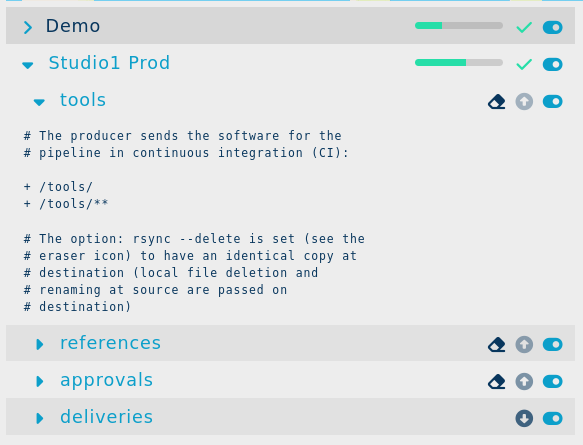
This interface lets you explore the connected storages and synchronisation channels. Multiple channels can be expanded using the and buttons, allowing you to consult the details of several items.
An item's status is shown using a (activated) or a (deactivated) icons. You can toggle a channel on and off by clicking this button.
The direction of the transfer is shown using up (upload) and down (download) arrow icons. The current transfer activity is shown using a blinking arrow.
Some important rsync options are shown on the link line like the eraser icon which means that the --delete rsync option is used for that link.
Hub Parameters
The tab is divided into three sections:
- The parameters at the top
- The Rsync options on the right side
- The notification options at the bottom
Parameters
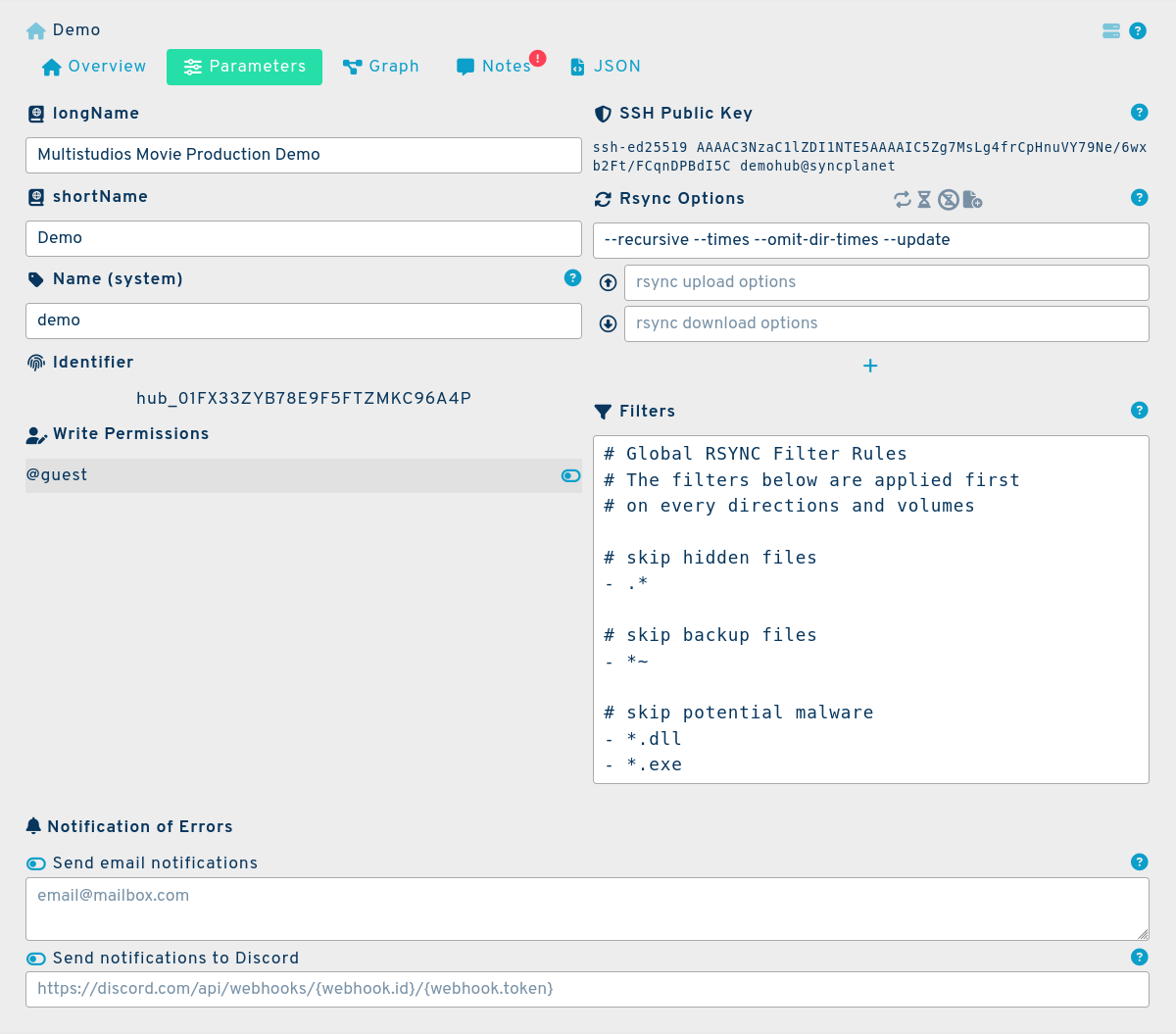
Long name
A longer name, often the real long name with no size limit, used for the titles in documents.
Tip
Example: Movie Production
Short name
A shorter name, used when the display needs a more consise form.
Tip
Example: Demo
Name (system)
A short hub or project's code name used to identify the project among the other projects. The format accepts a string from 3 to 16 characters long, containing lowercase characters and numbers only (regexp = ^[a-z0-9_]{3,16}$).
Tip
Example: demo
Note
This name is used to name the project's configuration directory on disks and as a prefix for the docker containers that will be running. This is like a codename for your project, which helps you find the project among others if you have multiple projects. Try and use the shortest system name possible, 3 letters should be enough.
Tip
Example: you can choose the name sth if your project's name is Stitch Head. This way you will have a concise sth short and good name for the directory holding the configuration files.
Identifier
An automatically generated string to identify the hub of the form: hub_# where # is a Universally Unique Lexicographically Sortable Identifier .
Tip
Example: hub_01FX33ZYB78E9F5FTZMKC96A4P
SSH public key
The public part of the key used to make the SSH connections to the connected storage units. This key is dedicated to the hub and to the project.
Tip
Example: ssh-ed25519 AAAAC3NzaC1lZDI1NTE5AAAAIC5Zg7MsLg4frCpHnuVY79Ne/6wxb2Ft/FCqnDPBdI5C demohub@syncplanet
Write permissions table
SyncPlanet is meant to be used by multiple users. This list contains all the users authorised to write and update an object. Developers can access the permissions table under the author key which can have a single user string value or have multiple user names in an array of username strings.
Note
If a user is not listed in the table, it means that you must first connect them to the project
Rsync options and filters
This interface at the bottom of the parameters lets you configure the rsync options for the hub to control many aspects of the file transfers. These options will be used on every link and storage connected to the hub. You can specify some options for a specific direction only.
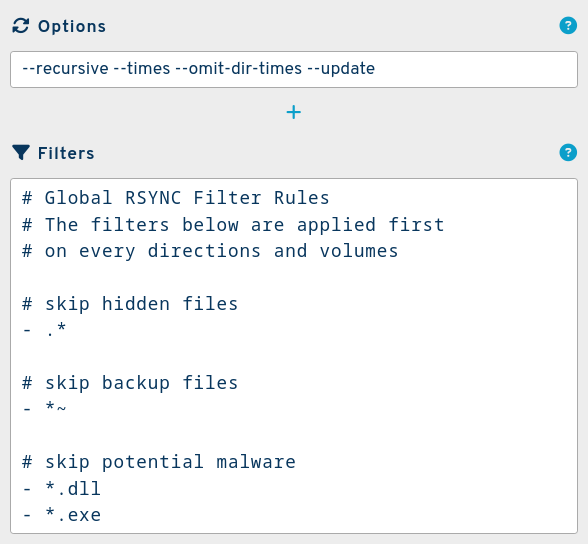
Please check the rsync page for further details.
Tip
An example for safe options on hub scope:
--recursive --times --update --omit-dir-times --stop-after=120
Rsync filters
The hub's rsync filters are also global and used on each rsync transfer. Visit the rsync filters page section for more details.
Tip
Here are the basic filters that could be applied on a typical project:
# Global RSYNC Filter Rules
# The filters below are applied first
# on every directions and volumes

# skip hidden files
- .*

# skip backup files
- *~

# skip potential malware
- *.dll
- *.exe
Notifications
Use these fields to receive notifications when errors occur. You can receive these notifications via e-mail or discord using a webhook.
Graph
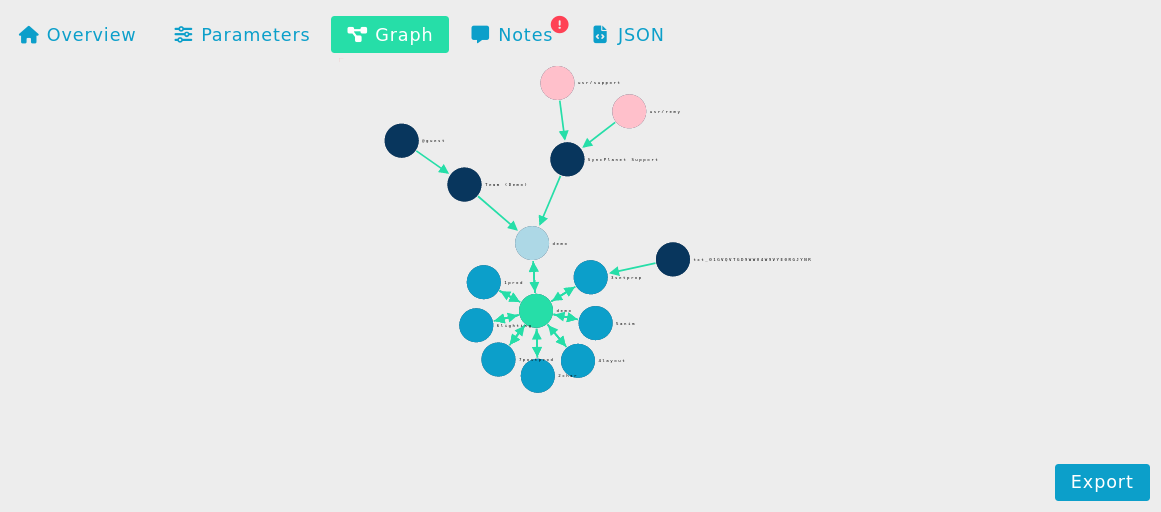
This graph gives a visual overview of the current hub's connexions. It is dynamic and interactive.
Hub Notes
This tab is used for personal notes regarding the hub.
Hub Programming Interface
This is the programming interface for the hub. The hub is described as JSON objects that you can modify using the API.
{
"_id": "hub_01FX33ZYB78E9F5FTZMKC96A4P",
"author": "support",
"bytesRemaining": 39450477204,
"bytesTotal": 57174604644,
"bytesUsed": 17724127439,
"comment": "# Movie Production Demo\n\nThis example is showing the data flows for a fictional 3D animated\nmovie production.",
"enable": true,
"error": 0,
"filters": "# Global RSYNC Filter Rules\n# The filters below are applied first\n# on every directions and volumes\n\n# skip hidden files\n- .*\n\n# skip backup files\n- *~\n\n# skip potential malware\n- *.dll\n- *.exe",
"geoloc": [3.17456,50.69421],
"hostname": "",
"image": "syncplanet/run:1.0.32",
"longName": "Movie Production",
"name": "demo",
"path": "/projects/demo/",
"rsaPublicKey": "ssh-rsa AAAAB3NzaC1yc2EAAAADAQABAXACAQBYinfRa2J3Yst6TzAwB3mZ7a/yD4VplB/g4QWAJ8C/CkPEtCOArlFj9kAD1rbsRwq1qPb5HqFf6bMM/OQeYxNMf2HGjwBnFxQujVlb10hkrncKUL9wvKhtwjsLd5lGLTqH7A7ioUHjepLFRd6ntitvDAPI9JlCZoELyCZNEGYAgtBflazTXSlgYGZO23xzfFDZt22I9F1FmN7iDG2NxYHrmHa2B0D1VgqLtHbgQEzsh6PtQNAoTCMI25lt9Sy2inSMqS18IfJIe1OaBGo7tCPwFFzk7EwqHaa7ECHGmh6tHLO4XJ/Sgc7VCJiW9OV1nMlc1HRA8KeVDcCqIWZXagBy3DzIj0+7Ul/rxuY9KHh4XynWRRW8gtUVDlDbnbUOnbCl51D7I4HfQJWEJrZP6ModX/baQRkTi9XufsogWaRNTPKDvFFT3kP316DMdrwuy/guNlpnWEQq/UG13+z8JoJPe60wiUn6qMuk5L4Ftq7pqDaVsMTKlZnUzvRkEBA1sUKlBJSIX4lX5B6Ol0AxOEOlP9wME2+Vaf3qu8XMMmymTQlTSIksc3Ltc5PTsHUBkK6WWE5+T3Z+ZEE9MyBYhqsXLyaxuGCybuBIk9VUislYPk+1y43o2qRIBSop4TA1kEQ89xeAwS8afuSMJ5a7Af3jX4IaGE1YAooPRolgliQT2w== demohub@syncplanet",
"rsync_args": "--times --update --omit-dir-times --recursive --compress",
"shortName": "Demo",
"time": 1639134611215,
"webhookURL": ""
}
Please see Environment-Setup and API for details on how to setup a client for Python, Javascript and Shell scripting.
Hub Setup
To set up a new hub, please see the following article on how to set up a hub
Next
Further reading:
- You can try the hub demo interface
- Find information regarding the storages or the channels.