Table of contents
Rsync
Rsync is a free and open source software designed to transfer files between a local and a remote storage. SyncPlanet uses Rsync among other tools to trigger file discovery and to transfer files.
Note
For further information regarding Rsync and its functions, please check Rsync at Wikipedia , the Rsync website , and the rsync source code repository on GitHub .
Note
If you are looking for a mode letting you publish the files from your pipeline’s asset manager and DCC, consider reading the SyncPlanet API documentation
Scopes
In SyncPlanet, the different Rsync options are organized into 3 categories called scopes:
- Hub scope : Global rsync options, active for every transfers of the hub.
- Storage scope : Specific options for a storage unit, active for all the storage's transfers.
- Channel scope : Options for every transfers of a specific channel, in 1 direction.

The 3 scopes with their impacted zones
Note
Storage and channel options are applied to a transfer only if it is part of their scope.
Note
The options specified in the hub scope are active everytime Rsync is ran.

Example of transfers, involving different scopes
Note
For further information, see our article on data flows.
Command line
Rsync is driven by entering specific options in the relevant field under the parameter tabs of the hub, storage units, and channels.
The options are passed to the rsync command in a specific order:
- hub options
- storage options
- channel options
A typical rsync command line used by SyncPlanet for the hub without specific storage and channel options looks like this:
rsync --recursive --times --update --omit-dir-times <LOG_MANAGEMENT> <FILTERS_MANAGEMENT> <SOURCE> <TARGET>

      \_________________hub scope_________________/ \_____________internals_____________/
Tip
Entering options in the rsync command line uses the usual --option syntax, for example --recursive or its shorter form -r.
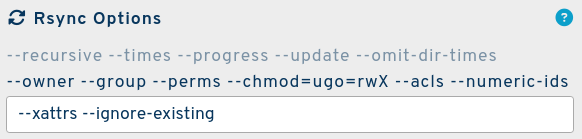
Example of options applied for a hub, a storage, and a channel
Option list
In this section you will find a breakdown of the most commonly used options for the different scopes. This list is non exhaustive as there are many different options. For options not included in this article, please see the html version of the Rsync manpage
Note
For rsync filters, please see the relevant documentation regarding Rsync filters. This includes the following options: --filter, --exclude and --include
Options are listed alphabetically and marked with icons to indicate to which elements they may be applied:
- This option can be used for the hub.
- This option can be used for storage units.
- This option can be used for channels.
Tip
Here are typical rsync options for a hub scope (upload and download):
--links --omit-dir-times --progress --recursive --stop-after=120 --times --update
Upload only:
--perms --chmod=ug=rwX,o=rX
(ensure that the files uploaded from a Microsoft storage have permissions for the group).
Each option is explained below, providing the manual of Rsync, some more information and some hints.
--backup, -b
Make backups (see --suffix & --backup-dir).
Rsync manual
With this option, preexisting destination files are renamed as each file is transferred or deleted. You can control where the backup file goes and what (if any) suffix gets appended using the
--backup-dirand--suffixoptions.If you don't specify
--backup-dir:
- the
--omit-dir-timesoption will be forced on- the use of
--delete(without--delete-excluded), causes rsync to add a "protect" filter-rule for the backup suffix to the end of all your existing filters that looks like this:-f "P *~". This rule prevents previously backed-up files from being deleted.Note that if you are supplying your own filter rules, you may need to manually insert your own exclude/protect rule somewhere higher up in the list so that it has a high enough priority to be effective (e.g., if your rules specify a trailing inclusion/exclusion of
*, the auto-added rule would never be reached).
--compress, -z
Compress file data during the transfert.
Rsync manual
With this option, rsync compresses the file data as it is sent to the destination machine, which reduces the amount of data being transmitted -- something that is useful over a slow connection.
Rsync supports multiple compression methods and will choose one for you unless you force the choice using the
--compress-choice(--zc) option.Run rsync
--versionto see the default compress list compiled into your version.When both sides of the transfer are at least 3.2.0, rsync chooses the first algorithm in the client's list of choices that is also in the server's list of choices. If no common compress choice is found, rsync exits with an error. If the remote rsync is too old to support checksum negotiation, its list is assumed to be "zlib".
The default order can be customized by setting the environment variable
RSYNC_COMPRESS_LISTto a space-separated list of acceptable compression names. If the string contains a "&" character, it is separated into the "client string & server string", otherwise the same string applies to both. If the string (or string portion) contains no non-whitespace characters, the default compress list is used. Any unknown compression names are discarded from the list, but a list with only invalid names results in a failed negotiation.There are some older rsync versions that were configured to reject a
-zoption and require the use of-zzbecause their compression library was not compatible with the default zlib compression method. You can usually ignore this weirdness unless the rsync server complains and tells you to specify-zz.
Note
Depending on the type of transmitted data, processors and bandwidths, it may be efficient to transmit the data compressed. Check all available options to finetune your compression, like --compress-level, --skip-compress, -compress-choice (in newer Rsync version).
Important
This option can prevent Rsync from working when running on a synology storage and processing relatively big compressed files in emission or reception. If you encounter this kind of issue, put this option separately on each storage that can handle it or fine-tune using --compress-choice=STR or --skip-compress=LIST to change the compression algorithm and exclude some file extensions from being compressed.
Tip
On high speed network links, it may take longer to compress the files than transmitting them directly.
--delete
Delete extraneous files from dest dirs.
Rsync manual
This tells rsync to delete extraneous files from the receiving side (ones that aren't on the sending side), but only for the directories that are being synchronized. You must have asked rsync to send the whole directory (e.g. "
dir" or "dir/") without using a wildcard for the directory's contents (e.g. "dir/*") since the wildcard is expanded by the shell and rsync thus gets a request to transfer individual files, not the files' parent directory. Files that are excluded from the transfer are also excluded from being deleted unless you use the--delete-excludedoption or mark the rules as only matching on the sending side (see the include/exclude modifiers in the FILTER RULES section).Prior to rsync 2.6.7, this option would have no effect unless
--recursivewas enabled. Beginning with 2.6.7, deletions will also occur when--dirs(-d) is enabled, but only for directories whose contents are being copied.This option can be dangerous if used incorrectly! It is a very good idea to first try a run using the
--dry-run(-n) option to see what files are going to be deleted.If the sending side detects any I/O errors, then the deletion of any files at the destination will be automatically disabled. This is to prevent temporary filesystem failures (such as NFS errors) on the sending side from causing a massive deletion of files on the destination. You can override this with the
--ignore-errorsoption.The --delete option may be combined with one of the
--delete-WHENoptions without conflict, as well as--delete-excluded. However, if none of the--delete-WHENoptions are specified, rsync will choose the--delete-duringalgorithm when talking to rsync 3.0.0 or newer, or the--delete-beforealgorithm when talking to an older rsync. See also--delete-delayand--delete-after.
Warning
As the rsync manual states, use this option with extreme care as it could destroy important data. A good way of testing it is to use the --dry-run option to check the changes before production use.
Note
This option can be very useful for uni-directional propagations (from 1 source storage to N targets). It allows the source storage to delete and rename files so the changes will be propagated to the target storages which get an exact copy of the source.
--dirs, -d
Transfer directories without recursing.
Rsync manual
Tell the sending side to include any directories that are encountered. Unlike
--recursive, a directory's contents are not copied unless the directory name specified is "." or ends with a trailing slash (e.g. ".", "dir/.", "dir/", etc.). Without this option or the--recursiveoption, rsync will skip all directories it encounters (and output a message to that effect for each one). If you specify both--dirsand--recursive,--recursivetakes precedence.The
--dirsoption is implied by the--files-fromoption or the--list-onlyoption (including an implied--list-onlyusage) if--recursivewasn't specified (so that directories are seen in the listing). Specify--no-dirs(or--no-d) if you want to turn this off.There is also a backward-compatibility helper option,
--old-dirs(or--old-d) that tells rsync to use a hack of-r --exclude='/*/*'to get an older rsync to list a single directory without recursing.
--dry-run, -n
Perform a trial run with no changes made.
Rsync manual
This makes rsync perform a trial run that doesn't make any changes (and produces mostly the same output as a real run). It is most commonly used in combination with the
--verbose,-vand/or--itemize-changes(-i) options to see what an rsync command is going to do before one actually runs it.The output of
--itemize-changesis supposed to be exactly the same on a dry run and a subsequent real run (barring intentional trickery and system call failures); if it isn't, that's a bug. Other output should be mostly unchanged, but may differ in some areas. Notably, a dry run does not send the actual data for file transfers, so--progresshas no effect, the "bytes sent", "bytes received", "literal data", and "matched data" statistics are too small, and the "speedup" value is equivalent to a run where no file transfers were needed.
Note
This option is useful to check the results before activating a channel, to know that everything runs fine before starting the real transfers. Once checked and approved, you can safely remove this option to start the real transfers.
--fake-super
Store/recover privileged attrs using xattrs.
Rsync manual
When this option is enabled, rsync simulates super-user activities by saving/restoring the privileged attributes via special extended attributes that are attached to each file (as needed). This includes the file's owner and group (if it is not the default), the file's device info (device & special files are created as empty text files), and any permission bits that we won't allow to be set on the real file (e.g. the real file gets u-s,g-s,o-t for safety) or that would limit the owner's access (since the real super-user can always access/change a file, the files we create can always be accessed/changed by the creating user). This option also handles ACLs (if
--aclswas specified) and non-user extended attributes (if--xattrswas specified).This is a good way to backup data without using a super-user, and to store ACLs from incompatible systems.
The --fake-super option only affects the side where the option is used. To affect the remote side of a remote-shell connection, use the
--remote-option(-M) option:rsync -av -M --fake-super" /src/ host:/dest/For a local copy, this option affects both the source and the destination. If you wish a local copy to enable this option just for the destination files, specify
-M--fake-super. If you wish a local copy to enable this option just for the source files, combine--fake-superwith-M--super.This option is overridden by both
--superand--no-super.
--ignore-existing
Skip updating files that exist on receiver.
Rsync manual
This tells rsync to skip updating files that already exist on the destination (this does not ignore existing directories, or nothing would get done). See also
--ignore-non-existing.This option is a TRANSFER RULE, so don't expect any exclude side effects.
This option can be useful for those doing backups using the
--link-destoption when they need to continue a backup run that got interrupted. Since a--link-destrun is copied into a new directory hierarchy (when it is used properly), using--ignore-existingwill ensure that the already-handled files don't get tweaked (which avoids a change in permissions on the hard-linked files). This does mean that this option is only looking at the existing files in the destination hierarchy itself.When
--info=skip2is used rsync will output "FILENAME exists (INFO)" messages where the INFO indicates one of "type change", "sum change" (requires-c), "file change" (based on the quick check), "attr change", or "uptodate". Using--info=skip1(which is also implied by 2-voptions) outputs the exists message without the INFO suffix.
Note
This option prevents propagating unwanted changes made to the previously synchronised files (from this storage and from the other storages) and provides a good protection against unwanted propagations e.g. if a ransomware changes the files on one of the sites the changes will not be propagated.
--links, -l
Copy symlinks as symlinks.
Rsync manual
When symlinks are encountered, recreate the symlink on the destination.
Note
This option recreates the symbolic link on the destination instead of copying as if the symlinks were regular files (thus duplicating the linked file). It is a safe option to use in case your users want to use symlinks. Windows filesystem don't support symlinks so mounting a server that uses symlink will display regular files.
--omit-dir-times, -O
Omit directories from --times.
Rsync manual
This tells rsync to omit directories when it is preserving modification, access, and create times. If NFS is sharing the directories on the receiving side, it is a good idea to use
-O. This option is inferred if you use--backupwithout--backup-dir.This option also has the side-effect of avoiding early creation of missing sub-directories when incremental recursion is enabled, as discussed in the
--inc-recursivesection.
Note
This is a useful option to put in the global options (enabled for every transfers). The directories won't have their times propagated but in most cases this is not needed. This option also prevents updating times on directories everytime there is an activity inside that directory.
--progress
Show progress during transfer.
Rsync manual
This option tells rsync to print information showing the progress of the transfer. This gives a bored user something to watch. With a modern rsync this is the same as specifying
--info=flist2,name,progress, but any user-supplied settings for those info flags takes precedence (e.g.--info=flist0--progress).While rsync is transferring a regular file, it updates a progress line that looks like this:
782448 63% 110.64kB/s 0:00:04In this example, the receiver has reconstructed 782448 bytes or 63% of the sender's file, which is being reconstructed at a rate of 110.64 kilobytes per second, and the transfer will finish in 4 seconds if the current rate is maintained until the end.
These statistics can be misleading if rsync's delta-transfer algorithm is in use. For example, if the sender's file consists of the basis file followed by additional data, the reported rate will probably drop dramatically when the receiver gets to the literal data, and the transfer will probably take much longer to finish than the receiver estimated as it was finishing the matched part of the file.
When the file transfer finishes, rsync replaces the progress line with a summary line that looks like this:
1,238,099 100% 146.38kB/s 0:00:08 (xfr#5, to-chk=169/396)In this example, the file was 1,238,099 bytes long in total, the average rate of transfer for the whole file was 146.38 kilobytes per second over the 8 seconds that it took to complete, it was the 5th transfer of a regular file during the current rsync session, and there are 169 more files for the receiver to check (to see if they are up-to-date or not) remaining out of the 396 total files in the file-list.
In an incremental recursion scan, rsync won't know the total number of files in the file-list until it reaches the ends of the scan, but since it starts to transfer files during the scan, it will display a line with the text "ir-chk" (for incremental recursion check) instead of "to-chk" until the point that it knows the full size of the list, at which point it will switch to using "to-chk". Thus, seeing "ir-chk" lets you know that the total count of files in the file list is still going to increase (and each time it does, the count of files left to check will increase by the number of the files added to the list).
Tip
This option helps the administrators who have access to the running rsync processes on the hub machine to debug the file transfers and their speed
--recursive, -r
Recurse into directories.
Rsync manual
This tells rsync to copy directories recursively. See also
--dirs(-d) for an option that allows the scanning of a single directory.See the
--inc-recursiveoption for a discussion of the incremental recursion for creating the list of files to transfer.
Note
In SyncPlanet, every file and folder is excluded by default regardless the use of the --recursive option using a - * filter rule which is always provided by default.
Tip
You can generally safely use this option except in some specific cases.
The --recursive option is usually put in the global options (enabled for every transfer) to be able to process the folder-tree from your project's root.
--stop-after=MINS
Stop rsync after MINS minutes have elapsed.
Rsync manual
This option tells rsync to stop copying when the specified number of minutes has elapsed.
For maximal flexibility, rsync does not communicate this option to the remote rsync since it is usually enough that one side of the connection quits as specified. This allows the option's use even when only one side of the connection supports it. You can tell the remote side about the time limit using
--remote-option(-M), should the need arise.The
--time-limitversion of this option is deprecated.
Note
This is a good option to put in the global options (enabled for every transfer). As extra security, you can put a timeout value which is more that the expected duration of the longer filter to process.
For example, to set a timeout of 2 hours: --stop-after=120
If a filter takes longer to process, and a time out occurs while transfering files, this is not a problem: the next iteration will resume the transfer where it has previously stopped.
Tip
In some situations, Rsync can hang forever (for example waiting for a locally mounted docker storage to reappear) or can take a long time to run (for example if a remote rsync command struggles (un)compressing a file) so, instead of waiting forever without raising an error, a time out can be set to progress further.
--times, -t
Preserve modification times.
Rsync manual
This tells rsync to transfer modification times along with the files and update them on the remote system. Note that if this option is not used, the optimization that excludes files that have not been modified cannot be effective; in other words, a missing
-t(or-a) will cause the next transfer to behave as if it used--ignore-times(-I), causing all files to be updated (though rsync's delta-transfer algorithm will make the update fairly efficient if the files haven't actually changed, you're much better off using-t).A modern rsync that is using transfer protocol 30 or 31 conveys a modify time using up to 8-bytes. If rsync is forced to speak an older protocol (perhaps due to the remote rsync being older than 3.0.0) a modify time is conveyed using 4-bytes. Prior to 3.2.7, these shorter values could convey a date range of 13-Dec-1901 to 19-Jan-2038. Beginning with 3.2.7, these 4-byte values now convey a date range of 1-Jan-1970 to 7-Feb-2106. If you have files dated older than 1970, make sure your rsync executables are upgraded so that the full range of dates can be conveyed.
Tip
This is an important option to put in the global scope (enabled for every transfers). With this option we can compare the state of synchronization of a file using the modification time on each storage.
--update, -u
Skip files that are newer on the receiver.
Rsync manual
This forces rsync to skip any files which exist on the destination and have a modified time that is newer than the source file. (If an existing destination file has a modification time equal to the source file's, it will be updated if the sizes are different.)
Note that this does not affect the copying of dirs, symlinks, or other special files. Also, a difference of file format between the sender and receiver is always considered to be important enough for an update, no matter what date is on the objects. In other words, if the source has a directory where the destination has a file, the transfer would occur regardless of the timestamps.
This option is a TRANSFER RULE, so don't expect any exclude side effects.
A caution for those that choose to combine
--inplacewith--update: an interrupted transfer will leave behind a partial file on the receiving side that has a very recent modified time, so re-running the transfer will probably not continue the interrupted file. As such, it is usually best to avoid combining this with--inplaceunless you have implemented manual steps to handle any interrupted in-progress files.
Tip
The --update option is an important one among the global options (enabled for every transfers). It prevents the files from being overwriten if they have a newer modification date. Also, in a multi-source scenario, it allows many sources to increment the same files (the newer file wins and is propagated everywhere).
Next
- Find out more about the Rsync filters for filter-specific options.
- Check the html version of the Rsync manpage from the official Rsync site.
- Read the Rsync manual page from your system:
man rsync - Visit the Rsync source code repository hosted on GitHub .