Table of contents
Tutorial: Hub Setup
This short guide will help you through the essential steps to set up a SyncPlanet hub for your studios and enable them to share their work together.
Account
First, you need to create an account for your organization. Simply go to Start - SyncPlanet and type in an address in the “sign up” field to create your account.

From your account, you will be able to create and manage your hub, teams, and storages.
Requirements
To use the SyncPlanet services, you will require an adequate server set up and configured to act as your hub.
Choosing a server for your hub
You may choose to use a server you already own, or rent one from a cloud provider. Any server you use must be running OpenSSH and docker. If you choose to rent, we recommend you choose from a datacenter near the location of your main studio. It is important that your server has adequate storage capacity and bandwith for your project.
The Hub
Hub parameters
To configure your server and have it act as your hub, you need to set its parameters. To do this, visit the connections panel in your account, and click on the Add button in the servers section.
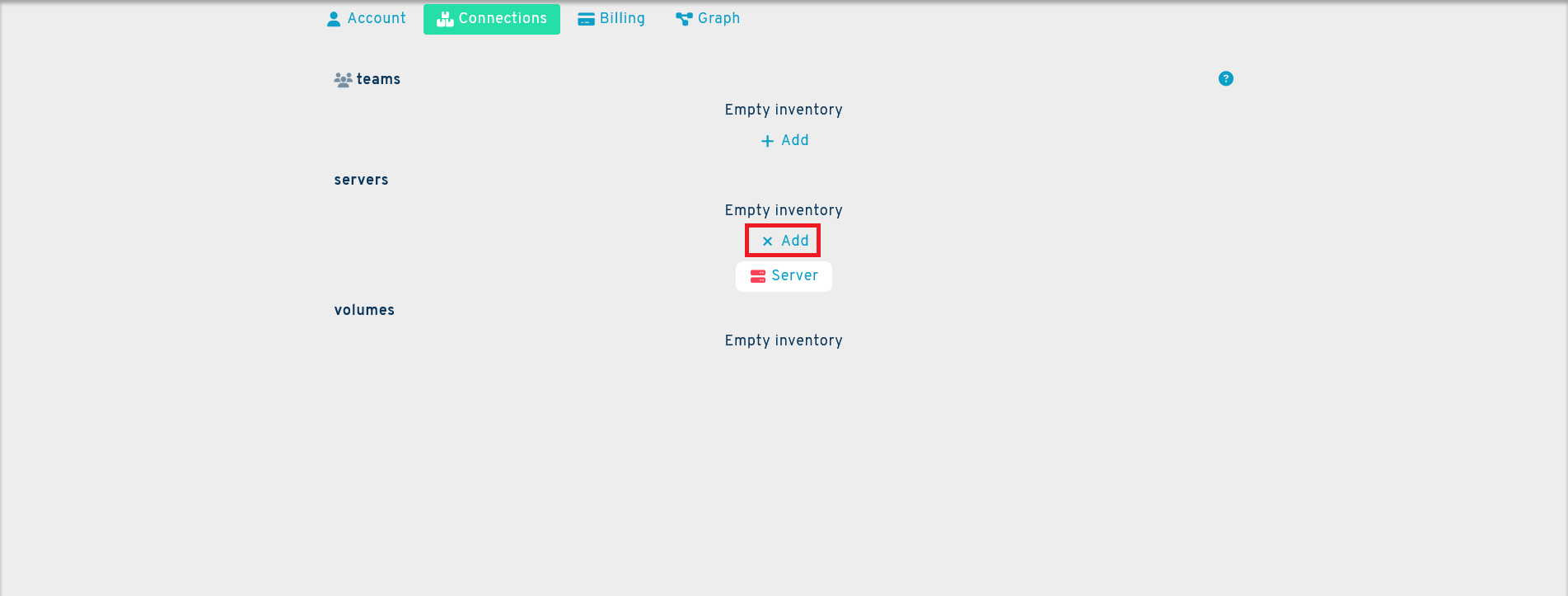
This will generate a new Server button. Click on it to open the newly created hub's interface.
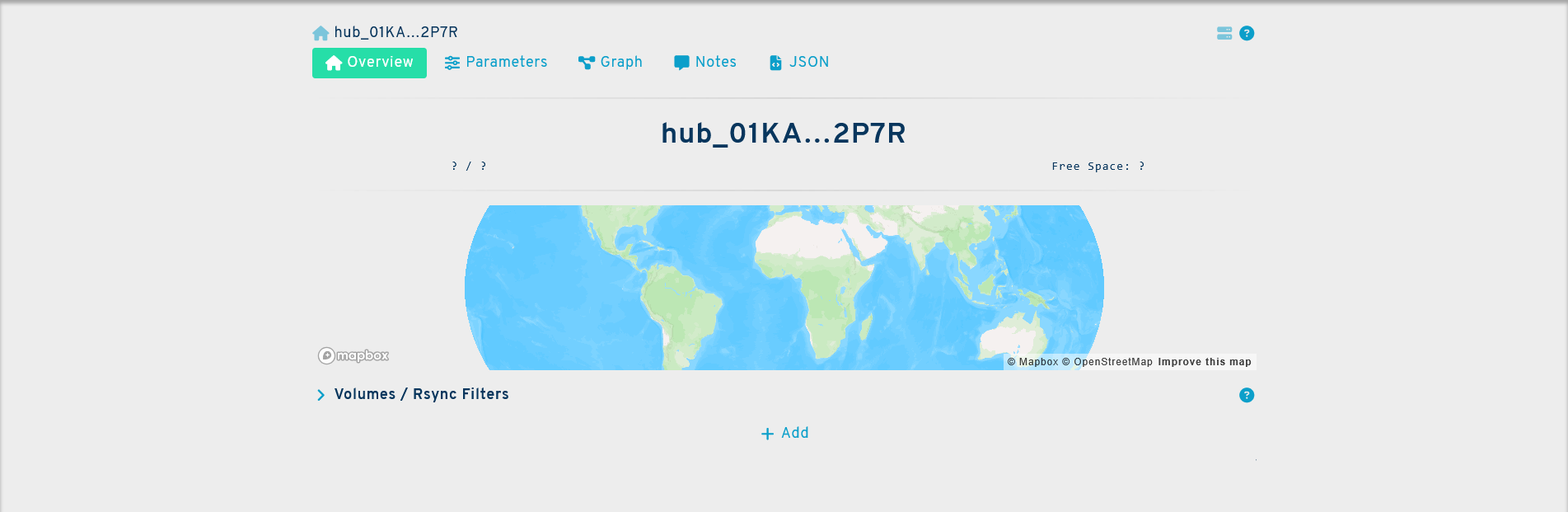
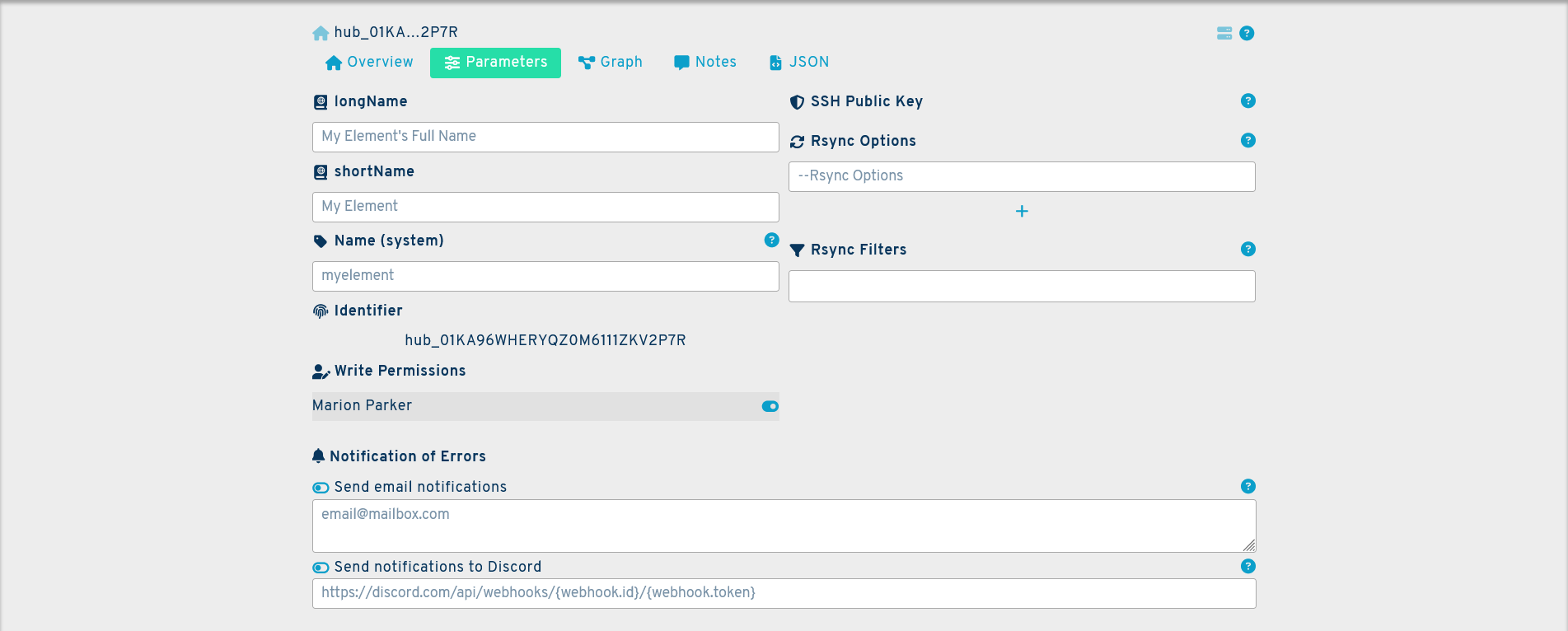
You can manage your hub and its storages from this window. For now go to the parameters panel to set the initial parameters for your server. The following fields must be filled to configure your hub:
longName: this is the full name of your hub. It may be anything you choose.
shortName: this is the truncated name of your hub, when using the full name is not practical.
Name (system): this is the name of your hub in the system. It can be made of between 3 to 16 lowercase alphanumerical characters and cannot contain spaces. Generally, a shorter name, using initials for example, is more practical.
Rsync Options: this will allow you to tailor the behavior of your hub to your needs. A useful set of basic options would be: --times --recursive --update. Please note that leaving this field empty is possible, but not recommended as Rsync will likely do nothing without commands. For a non-exhaustive list of commands, please see: Rsync Options
Rsync Filters: like Rscync Options, this field allows you to customize the behavior of your server, this time by using filters to include or skip files or olders. This field is optional. A non-exhaustive list of filters can be found here: Rsync Filters
Configuration
After setting up the parameters of your hub, you will need to configure it to run the Syncplanet services. To do so, open the SSH console in your server and type in the following command:
syncplanet init <apikey> <hub_id>
This will start the configuration process. Once that command has been properly executed, run the next command on the list:
cd hub.name
And finally:
docker compose up -d
Please note that in order for the docker command to execute properly, you will need a subscription to SyncPlanet
Your server is now ready to act as your hub. You can now start creating teams and storages to connect to the hub. For more information regarding the hub, please see: Hub
Additonal Questions
If you have any questions regarding the set-up process that are not answered by this guide, please contact us at support@syncplanet.io. In addition, some of our subscription plans include full support days.
Next
Further reading:
- Learn how to set up storage units
- Learn more about the hubs.
- Try the demo channel,